Extension Widgets
WUI provide many extended UI widgets specially for quick development, such as
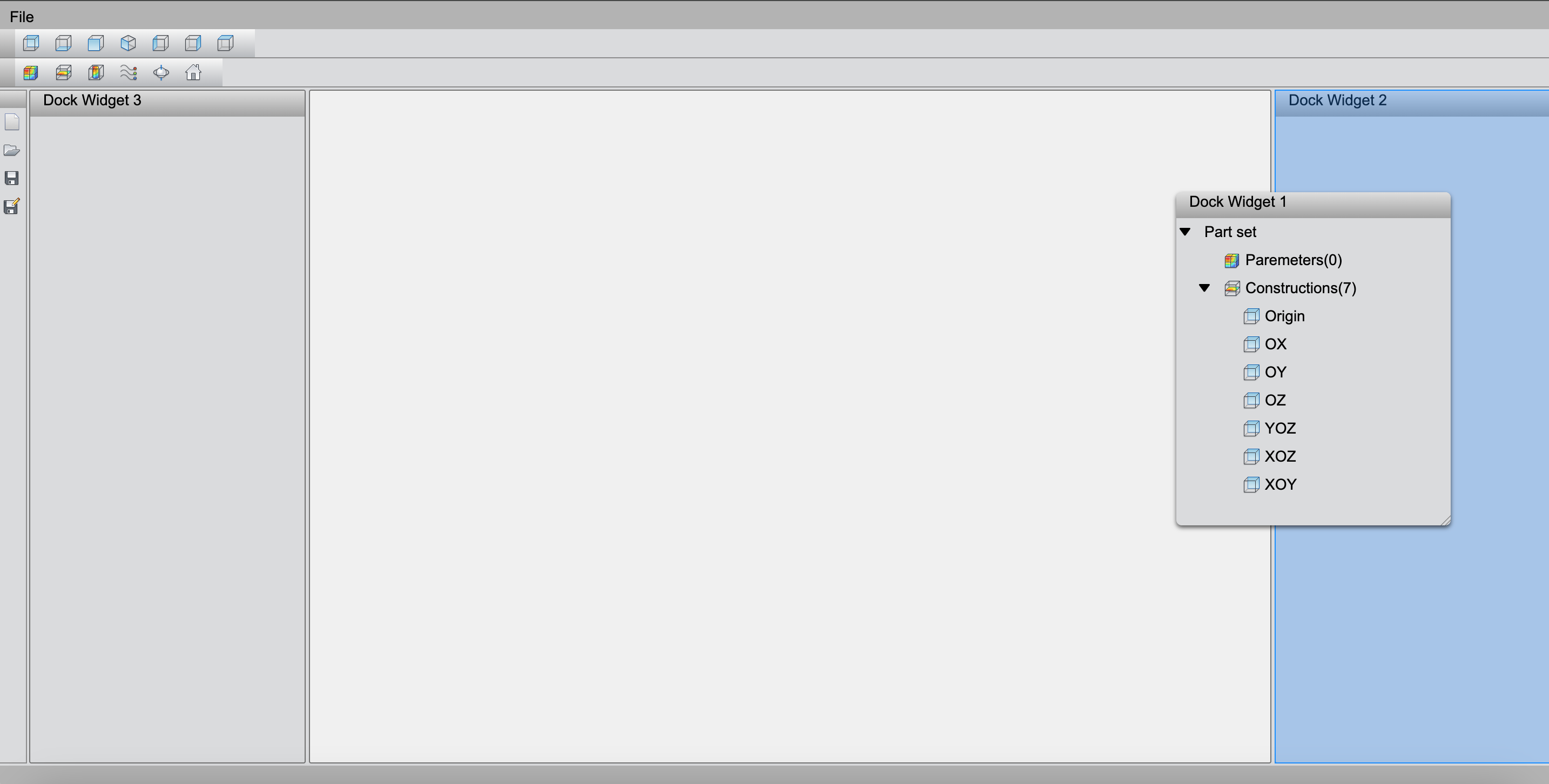
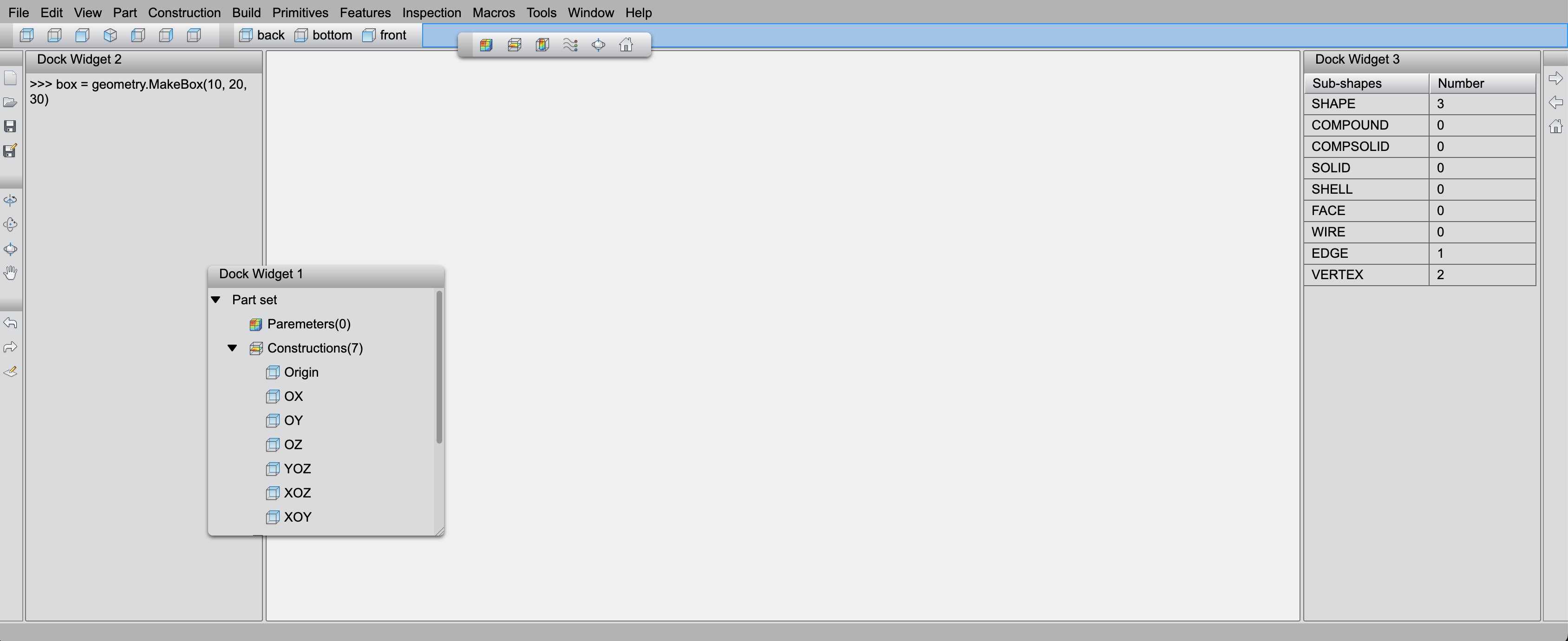
In this tutorial, you'll learn how to use the dock modules of the WUI framework library to implement the following features:
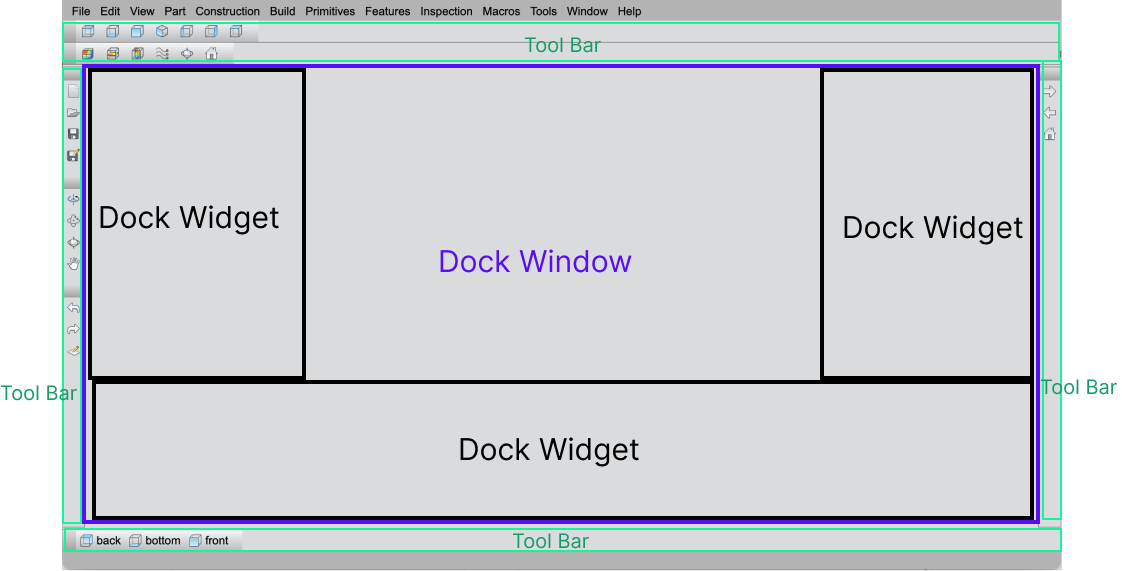
- Add tool bars to the main window. The toolbars can be docked to any edge of the main window or floated freely within the interface.
- Create dock window and dock widgets in the main window. Dock widgets can be docked to any edge of the dock window or floated freely within it.
By following this guide step by step, you'll construct a UI interface like the one shown below:
Importing Dock Modules
The WUI framework library provides several modules with docking capabilities, includingMainWindow,DockWindow, DockWidget, EDockArea.
import { Button, TreeWidget, TreeNode, TextEdit, TableWidget } from 'wui.basic';
import { MainWindow, DockWindow, DockWidget, EDockArea } from 'wui.framework';
import "./theme";
Creating Main Window
The MainWindow serves as the primary container for the application interface. It can host a menu bar, a central widget, a status bar, and multiple toolbars.
Initialize the Main Window
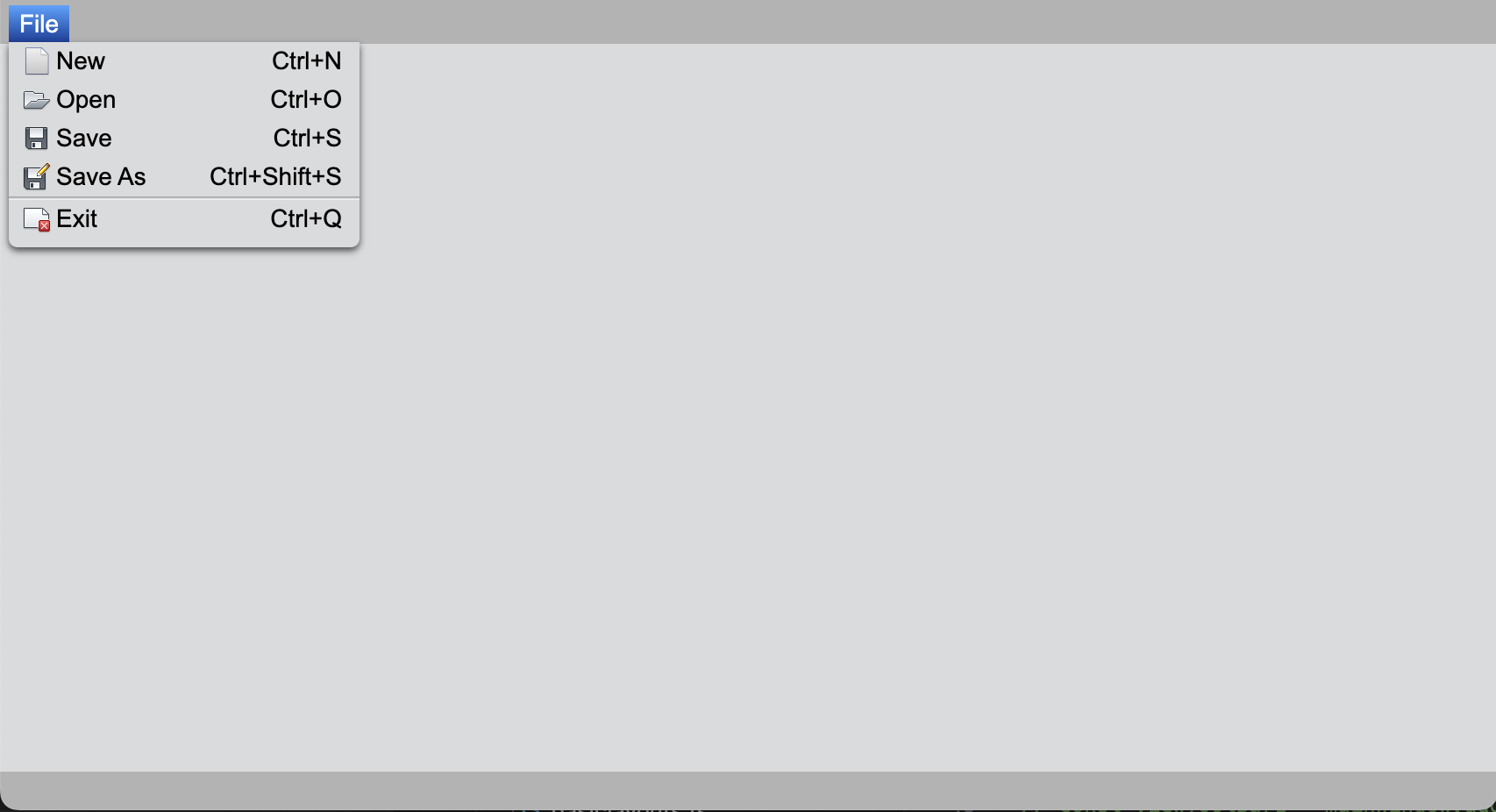
Create a MainWindow instance and add a "File" menu into its menuBar.
const mainWindow = new MainWindow();
const menuBar = mainWindow.menuBar;
const fileMenu = menuBar.add('File');
Add Menu Items
Add specific options to the "File" menu, such as New, Open, and Save.
fileMenu.width = 200;
fileMenu.addItem('New', '../../images/file_48.png').shortcutKey = 'Ctrl+N';
fileMenu.addItem('Open', '../../images/AppMenu-Open_32.png').shortcutKey = 'Ctrl+O';
fileMenu.addItem('Save', '../../images/AppMenu-Save_32.png').shortcutKey = 'Ctrl+S';
fileMenu.addItem('Save As', '../../images/AppMenu-SaveAs_32.png').shortcutKey = 'Ctrl+Shift+S';
fileMenu.addSeparator();
fileMenu.addItem('Exit', '../../images/App_Menu_Close.png').shortcutKey = 'Ctrl+Q';
Adding Toolbars
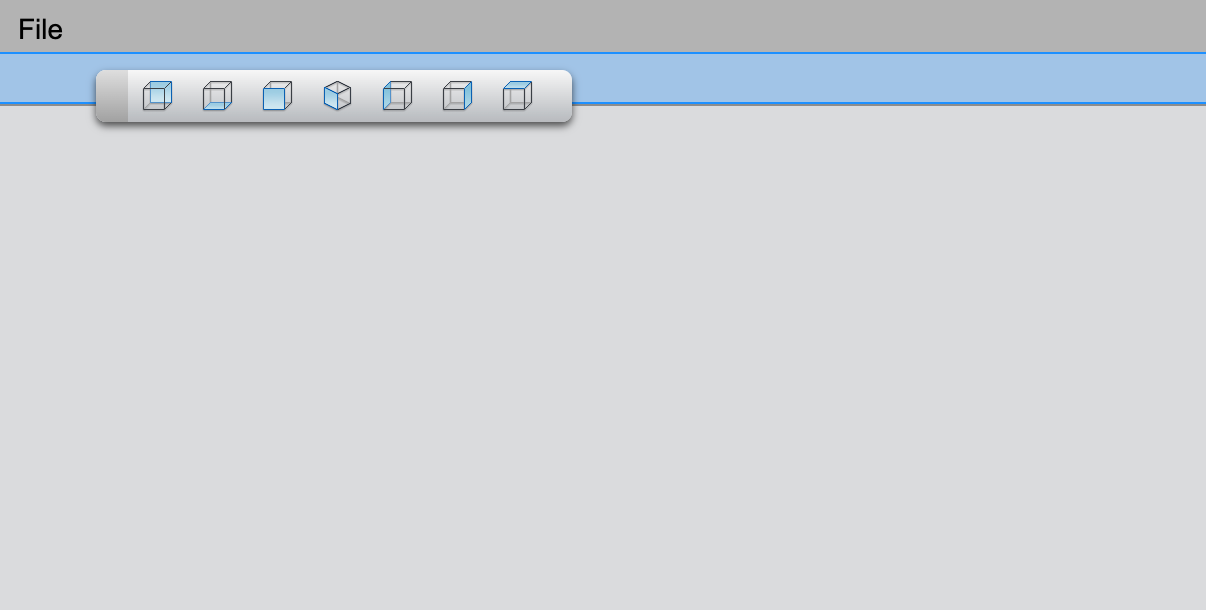
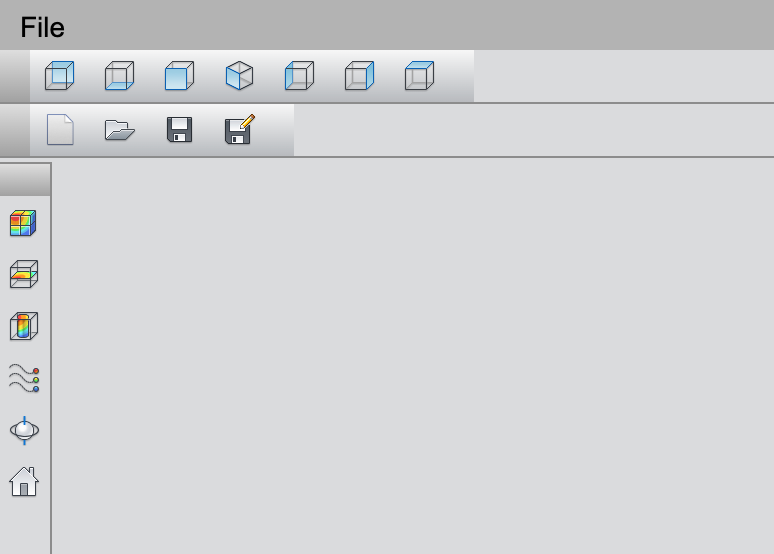
The MainWindow supports docking toolbars to its top, bottom, left and right edges. Use the addToolBar method to add a toolbar. If no specific docking area is provided, the toolbar will dock to the top by default.
Each toolbar has a gripper on its left side. Users can grab this gripper to drag the toolbar away from its docked position, making it a floating toolbar.
You can add multiple toolbars that stack in the same docking area.
const viewToolBar = mainWindow.addToolBar(EDockArea.Top);

new Button(viewToolBar, undefined, '../../images/view_from_back_32.png');
new Button(viewToolBar, undefined, '../../images/view_from_bottom_32.png');
new Button(viewToolBar, undefined, '../../images/view_from_front_32.png');
new Button(viewToolBar, undefined, '../../images/view_from_home_32.png');
new Button(viewToolBar, undefined, '../../images/view_from_left_32.png');
new Button(viewToolBar, undefined, '../../images/view_from_right_32.png');
new Button(viewToolBar, undefined, '../../images/view_from_top_32.png');
Adding Dock Window and Dock Widgets
To display a DockWidget, you must first create a DockWindow and then add the DockWidget to it using the addDockWidget method.
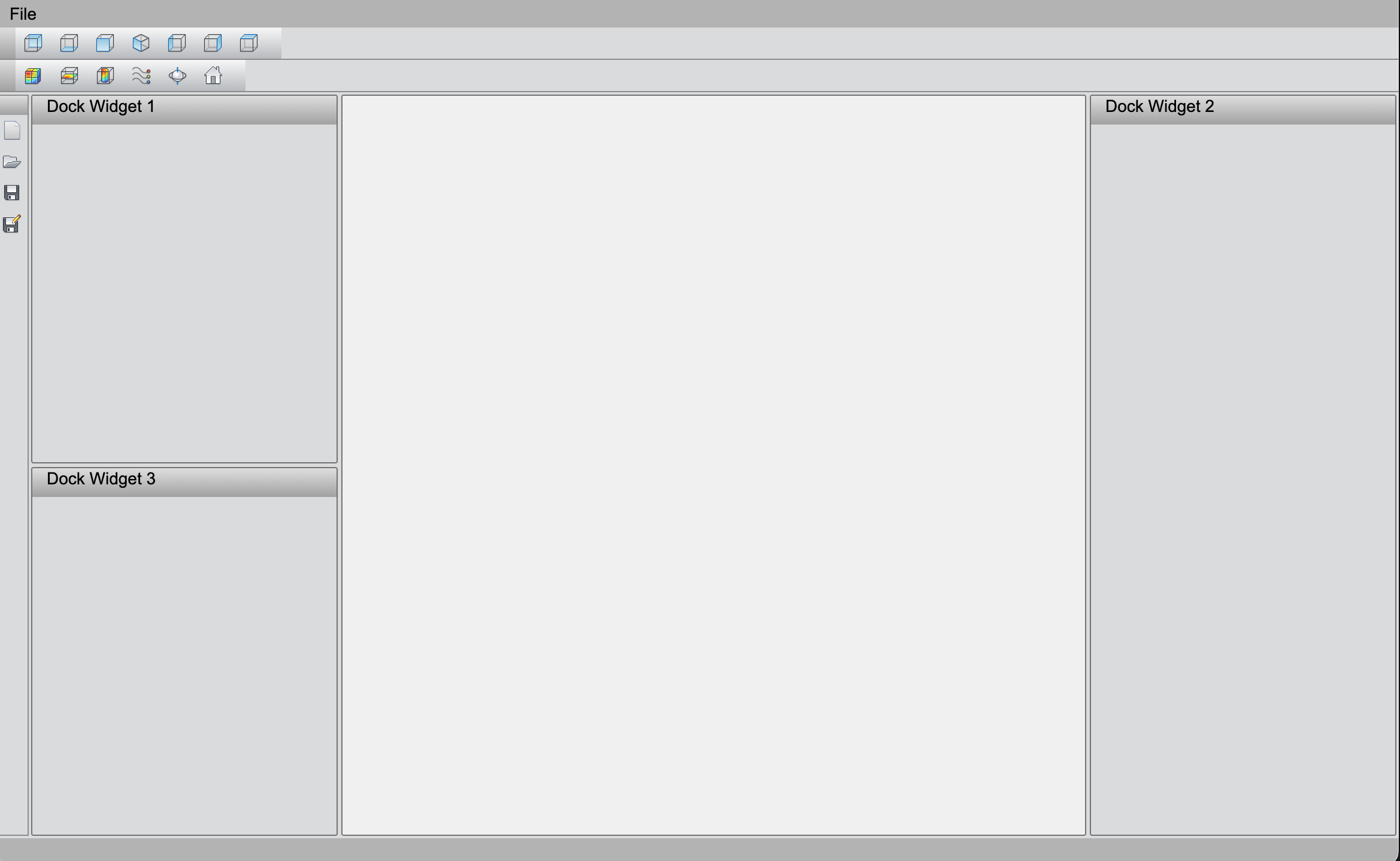
Create a dock window and set it as the central widget of the main window. Then, add a dock widget to the dock window, initially docking it to the left side.
We also add more dock widgets to the dock window, docking them to different positions.
Users can drag the dock widget by its gripper to change its docking position or float it freely within the dock window.
const dockWindow = new DockWindow(mainWindow.centralWidget);
const treeDockWidget = new DockWidget('Dock Widget 1');
dockWindow.addDockWidget(treeDockWidget, EDockArea.Left);
Adding Components to Dock Widgets
You can add various components to the dock widget, for example, use TreeWidget to create a tree structure and populate it with nodes.
The tree widget is the child of the dock widget, so it moves along with the dock widget when dragged.
// treeWidget
const treeWidget = new TreeWidget(treeDockWidget);
treeWidget.css = { 'border': '0px' };
const partSet = new TreeNode(treeWidget.root, 'Part set');
partSet.expanded = true;
new TreeNode(partSet, 'Paremeters(0)', '../../images/Results-Parts_32.png');
const constructions = partSet.addNode('Constructions(7)', '../../images/Results-Planes_32.png');
constructions.expanded = true;
const viewIcon = '../../images/view_from_back_32.png';
constructions.addNode('Origin', viewIcon);
constructions.addNode('OX', viewIcon);
constructions.addNode('OY', viewIcon);
constructions.addNode('OZ', viewIcon);
constructions.addNode('YOZ', viewIcon);
constructions.addNode('XOZ', viewIcon);
constructions.addNode('XOY', viewIcon);